To block a bad bot, add a rule to your website's .htaccess file that refuses its user agent. Awstats in cPanel shows which bots frequently visit your site.
A bot, also called a crawler or spider, is a program that visits web pages automatically. Search engines use bots to list your pages, but many other bots belong to SEO tools, AI companies or scrapers. Some of them request thousands of pages a day, which uses your CPU and memory and can slow the site or cause a 508 "Resource Limit Is Reached" error.
Every bot sends a user agent, a short text that names the program making the request (for example AhrefsBot). An .htaccess rule can check this user agent and answer the bot with 403 Forbidden instead of loading your page.
Before you begin
- Log in to the 2MHost client area at https://www.2mhost.com/login, go to Hosting accounts and click the cPanel button of your hosting account.
- Know how to show and edit hidden files in File Manager. See How to edit .htaccess and other hidden files in cPanel.
- Plan to make a copy of your
.htaccessfile before you change it. One typing mistake in this file can take the whole website offline.
Find the bots that visit your website in Awstats
Awstats is a statistics tool in cPanel that reads your website's access logs. Its Robots/Spiders visitors report lists the bots it recognizes and how much traffic each one uses.
- In cPanel, open Metrics › Awstats.
- Click View next to the domain you want to check. If the domain appears twice, open the SSL row too, because most visits use HTTPS.
- By default, current report is about current month, to change that, at the top of the report, choose the month under Reported period and click OK.
- In the left menu, click Robots/Spiders visitors. A table shows each bot with its Hits, Bandwidth and Last visit.
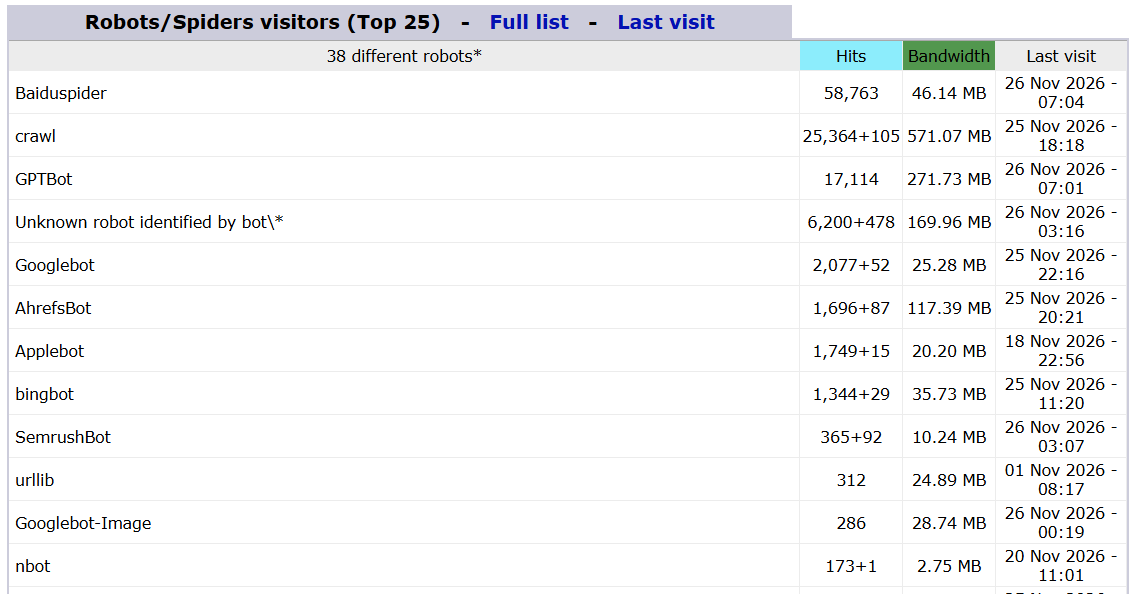
- Write down the bots with the most hits or bandwidth that you do not need, in the screenshot above, they could be Baiduspider, GPTBot,
Awstats shows a friendly name for each bot, which usually matches the text in its user agent. When a row says something general, like Unknown robot identified by bot, Awstats could not name the bot. Look up the exact user agent in the raw access log, as explained below.
Optionally, Look up the exact user agent in the raw access log
- In cPanel, open Metrics › Raw Access.
- Click your domain name in the list to download its log. The file is compressed with gzip (
.gz). - Unzip the file and open it in a text editor.
- Look at the last quoted text on each line. That is the user agent, for example
"Mozilla/5.0 (compatible; AhrefsBot/7.0; +http://ahrefs.com/robot/)". - Copy the bot's unique name from it, such as
AhrefsBot, to use in your rule.
Which bots to block and which to keep
The table below lists bots that often appear in Awstats, who runs them, and whether blocking them is usually safe. The first column is the text to match in your rule.
User agent text | Run by | Purpose | Block? |
|---|---|---|---|
| Google Search | No | |
| Microsoft | Bing search | No |
| Ahrefs | SEO tool | Usually safe |
| Semrush | SEO tool | Usually safe |
| Majestic | SEO tool | Usually safe |
| Moz | SEO tool | Usually safe |
| WebMeUp | SEO tool | Usually safe |
| DataForSEO | SEO data | Usually safe |
| Huawei | Petal Search | Usually safe |
| ByteDance | AI training | Usually safe |
| OpenAI | AI training | Your choice |
| Common Crawl | Web archive, AI data | Your choice |
SEO tool bots do not affect your Google ranking. Block them unless you or your SEO agency use that tool to check your own site.
Warning: Never block Googlebot or bingbot, and never match short words like bot, crawl or spider. They are part of Googlebot's user agent too, and your site can drop out of search results within days.
Add the bot blocking rule to .htaccess
In cPanel File Manager, the .htaccess file in your website's folder controls how the web server answers requests. This rule works on both Apache and LiteSpeed web servers.
- In cPanel, open Files › File Manager.
- Open your website's folder:
public_htmlfor the main domain, or the document root of an addon domain or subdomain. - Click Settings at the top right, check Show Hidden Files (dotfiles) and click Save.
- Right-click
.htaccess, select Copy, enter a new name such aspublic_html/.htaccess.bakand click Copy File(s). This is your backup.- If there is no
.htaccessfile, click + File, enter.htaccessand click Create New File.
- If there is no
- Right-click
.htaccessand select Edit, then click Edit again in the dialog that opens. - Paste the rule below at the very top of the file, above any other rules such as
# BEGIN WordPressor# BEGIN LSCACHE. - Click Save Changes. A message confirms that the file was saved.
# BEGIN Block bad bots
<IfModule mod_rewrite.c>
RewriteEngine On
RewriteCond %{HTTP_USER_AGENT} (AhrefsBot|SemrushBot|MJ12bot|DotBot|BLEXBot|DataForSeoBot|PetalBot|Bytespider) [NC]
RewriteRule .* - [F,L]
</IfModule>
# END Block bad bots
Replace the names inside the brackets with the bots you found in Awstats. Separate the names with |, with no spaces and no | at the start or end.
Here is what each line does:
RewriteCond %{HTTP_USER_AGENT}checks whether the user agent contains any of the names.[NC]makes the match ignore upper and lower case.RewriteRule .* - [F,L]answers the matching request with403 Forbiddenand stops reading further rules.- The
# BEGINand# ENDcomments help you find the block later. WordPress plugins do not change text outside their own markers.
The rule must be at the top of the file. If it sits below the WordPress rules, WordPress handles the request first and the bot still gets your pages.
Ask well-behaved bots to slow down with robots.txt
Many search engine and SEO bots read a file called robots.txt in your website's folder and follow its rules. Unlike .htaccess, robots.txt is a request, not a block: polite bots respect it, bad bots ignore it.
To ask one bot to stay away completely, add these lines to public_html/robots.txt in cPanel File Manager:
User-agent: SemrushBot
Disallow: /
Replace SemrushBot with the bot's name. Add one such group per bot, with an empty line between groups. Bots read robots.txt only from time to time, so the change can take a few days to work. Use .htaccess when you need the bot stopped now.
Troubleshooting
"500 Internal Server Error" after saving .htaccess
The file has a typing mistake, often a missing bracket or a broken <IfModule> line. In cPanel File Manager, open .htaccess, compare your rule with the example above, and fix it. If you cannot find the mistake, delete the new rule or restore .htaccess.bak.
The whole website shows "403 Forbidden"
The rule matches every visitor. This happens when the list has an empty entry, such as (AhrefsBot|) or ||, or a very general word like Mozilla. Remove the extra | or the general word, save, and test again.
The bot still appears in my access logs
A blocked bot keeps sending requests, but each one gets a 403 answer that uses almost no resources. Check the status code in Metrics › Raw Access: a 403 on those lines means the rule works. If you see 200, check that the rule is at the top of .htaccess and that the name matches the bot's user agent.
The bot changes its name or pretends to be a browser
Some bad bots send a fake user agent, so no user agent rule can catch them. Block their IP addresses in cPanel under Security › IP Blocker, or limit access by country with the rules in How to block or allow website visitors by country with .htaccess. If the traffic continues, open a help ticket at https://www.2mhost.com/tickets/create.
Note: Imunify360, built into 2MHost cPanel, already stops many known malicious bots before they reach your site. The .htaccess rule is for bots that are legal but unwanted, such as SEO tools and AI crawlers.
Frequently asked questions
Will blocking bots hurt my Google ranking?
No, as long as you do not block Googlebot or bingbot. SEO tool and AI bots have no effect on how Google ranks your site.
Should I block AI crawlers like GPTBot?
It depends on your goal. Blocking them keeps your content out of their AI training data, but it can also make your site less likely to appear in answers from AI assistants.
Why do blocked bots still show up in Awstats?
Awstats counts every request, including refused ones. The hits stay, but the bandwidth for a blocked bot should drop close to zero.
Do I need this rule for each website in my hosting account?
Yes, if each website has its own folder. An .htaccess file applies to its folder and the folders inside it, so add the rule to the document root of every domain you want to protect.