You change your cPanel password in the 2MHost client area, in the hosting account's Password & access card. cPanel itself has no option for it.
You don't need the password to open cPanel from the client area, because the cPanel button signs you in automatically. You need it when you log in to cPanel directly, or connect with FTP or SSH using the main cPanel account.
Find your cPanel username and password
The 2MHost client area shows the cPanel username and password of each hosting account in its Password & access card.
- Log in to the client area at https://www.2mhost.com/login.
- Click Hosting accounts in the main menu.
- Open the hosting account you want to manage.
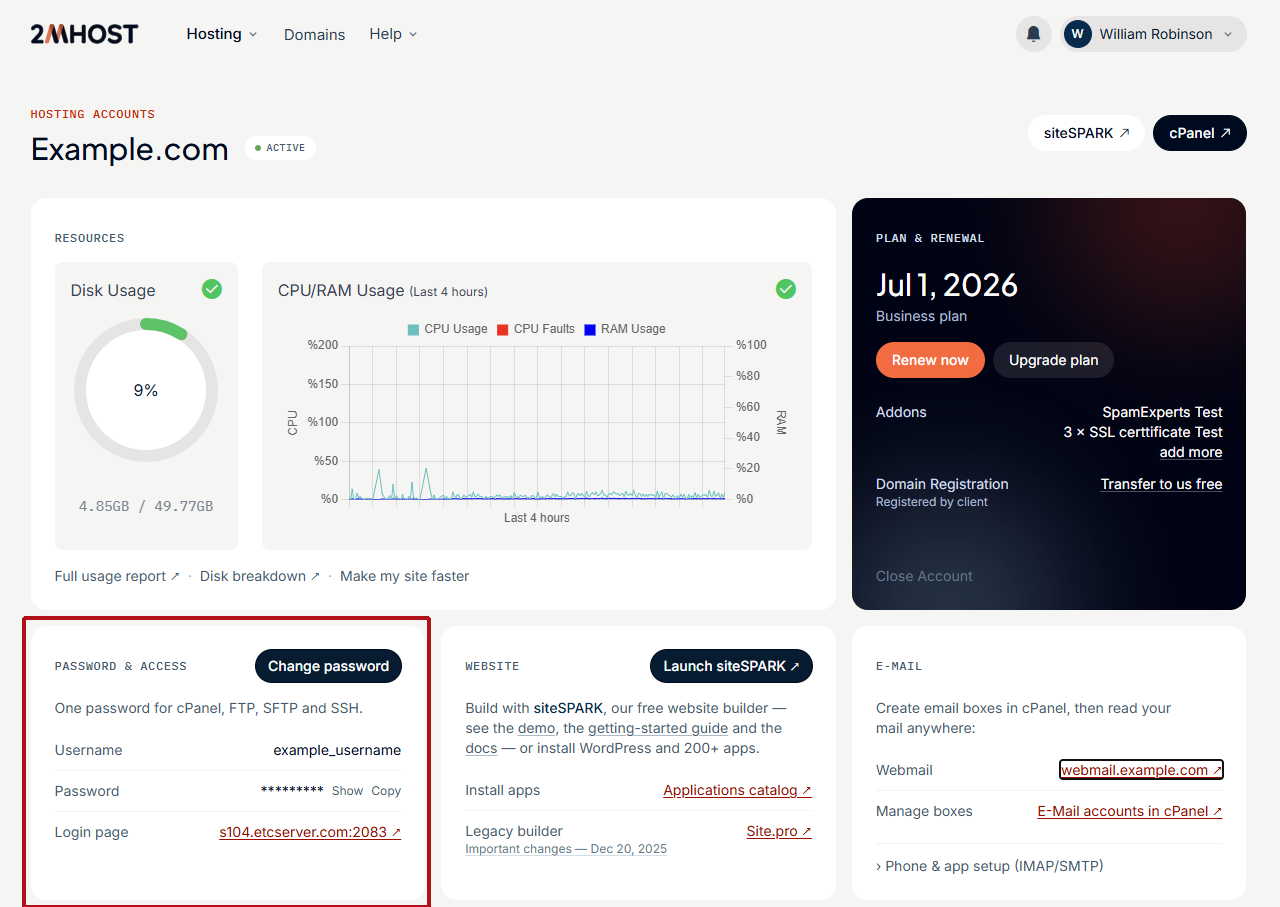
- Find the Password & access card. It shows your cPanel username and password.
This screenshot shows the Password & access card on the hosting account page.
Change your cPanel password
You can only change the cPanel password in the 2MHost client area. cPanel does not have its own option to change it.
- Log in to the client area at https://www.2mhost.com/login.
- Click Hosting accounts and open the hosting account.
- In the Password & access card, click Change password.
- Enter your new password.
- Save the change.
- Check the Password & access card. It now shows the new password.
Choose a long password that you don't use anywhere else. A password manager can create and store one for you.
Warning: Anyone with your cPanel password can delete your website files, databases and mailboxes. Never send it by email or chat. To add a second layer of protection, enable two-factor authentication for cPanel.
Update apps that use the cPanel password
After you change the cPanel password, every app that logs in with the old password stops connecting. Enter the new password in each of them:
- FTP and SFTP programs, such as FileZilla, that connect with the main cPanel username.
- SSH clients, if you connect to your hosting account with SSH.
- Any saved login for the cPanel login page in your browser or password manager.
Note: Email accounts, extra FTP accounts and MySQL database users have their own passwords. Changing the cPanel password does not change them, so your mailboxes and your WordPress website keep working.
Troubleshooting
I can't find Password & Security in cPanel
Many guides tell you to open Preferences › Password & Security in cPanel, but this option is not available in 2MHost cPanel. Change the password in the client area instead, as described in Change your cPanel password above.
"The login is invalid" on the cPanel login page
The username or password you entered does not match the account, often because a browser saved the old password. Copy the username and password from the Password & access card in the client area and paste them into the login form.
The cPanel login page or FTP stops loading after several failed logins
The server firewall can block your IP address after too many failed login attempts. Follow How to check if my connection is blocked by server firewall to confirm and remove the block.
Frequently asked questions
Do I need my cPanel password to open cPanel?
No. In the client area, go to Hosting accounts and click the cPanel button of the hosting account. cPanel opens already signed in.
Where do I log in to cPanel directly with my password?
Go to https://example.com:2083 or https://example.com/cpanel, replacing example.com with your domain. Then enter the username and password from the Password & access card.
Does changing the cPanel password change my client area password?
No. The client area has its own login, which you manage under Login settings in the account menu at the top right.
I forgot my cPanel password. How do I reset it?
Log in to the client area and look at the Password & access card of the hosting account. It shows the current password, or you can set a new one with Change password.